ORDR prints to Star mC-Print3 printers. A printer only prints ORDR orders once its CloudPRNT service is switched on and pointed at ORDR. ORDR Printer Setup is a free app for Mac and Windows that does this for you: it finds every Star printer on your network, shows you which ones are ready, and sets up the rest.
If you would rather change the settings by hand, see Set up a printer from its own web page.
Before you begin
- The printer is switched on, has paper, and is connected to your network by cable or Wi-Fi.
- You have a Mac or a Windows computer on the same network as the printer. A laptop on your guest Wi-Fi or on mobile data will not find it.
- Optional but useful: print the printer’s settings page (see below) so you know its IP address.
Print the printer’s settings page
The printer can print a page of its own settings. It tells you the printer’s IP address and whether CloudPRNT is on.
- Switch the printer off by holding its power button for a second or more.
- Hold down the FEED button, then press the power button to switch the printer on.
- Let go of FEED once it starts printing.
On the printout, look for:
- IP Address: four numbers separated by dots, for example 192.168.1.106. The first three of them (192.168.1 here) are what ORDR Printer Setup asks for.
- CloudPRNT: if it says DISABLE, the printer cannot receive ORDR orders yet. That is exactly what ORDR Printer Setup fixes.
Download and install the app
- Mac: Download for Mac
- Windows: Download for Windows
On a Mac, open the downloaded file and drag ORDR Printer Setup into your Applications folder. On Windows, open the downloaded file and the app installs itself.
If your computer warns you about opening an app downloaded from the internet, on a Mac open System Settings, then Privacy & Security, and choose Open Anyway. On Windows, choose More info, then Run anyway.
Find your printers
- Open ORDR Printer Setup.
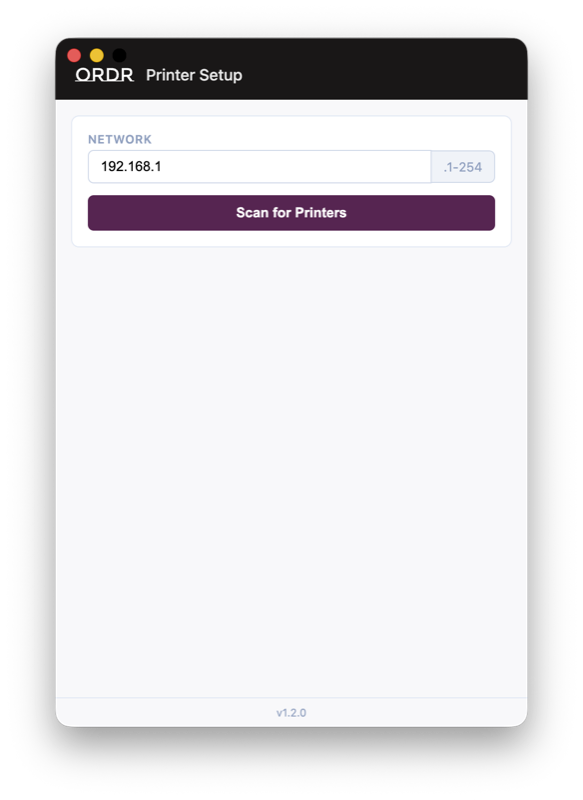
- In Network, type the first three numbers of your network, separated by dots, for example 192.168.1. The app fills in 192.168.1 for you, which is right for most venues. If your printer’s settings page shows an IP address starting with different numbers, use those instead.
- Press Scan for Printers. The app checks every address on your network, which takes a few seconds.
Each printer it finds appears as a card with its model, its IP address and a coloured dot:
- Configured (green): the printer is already set up to print ORDR orders. Nothing more to do.
- Wrong server URL (orange): CloudPRNT is on, but it is pointed somewhere other than ORDR, usually a previous till system.
- Not configured (yellow): CloudPRNT is off or has no server set. This is the most common state for a new printer.
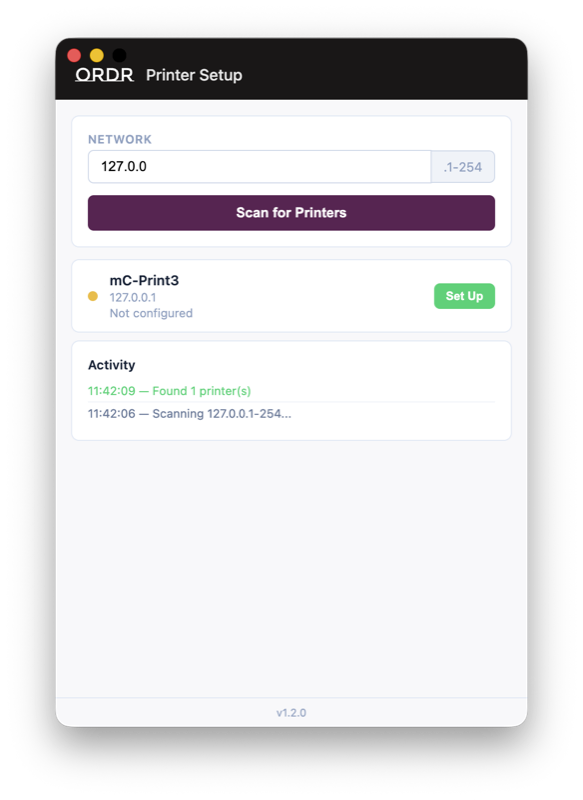
The pictures in this guide come from a test printer, so the addresses in them differ from yours.
If the app shows No Star printers found on this network., check that the printer is switched on, that your computer is on the same network, and that the numbers in Network match the start of the printer’s IP address.
Set up a printer
- Press Set Up on the printer’s card. If several printers need setting up, you can instead press the button below the cards that sets them all up one after another. It says how many, for example Set Up 3 New Printers.
- Wait while the app works. The dot turns blue and pulses, and the card shows each step: Saving settings…, then Restarting printer… and Waiting for printer to restart….
- When the printer comes back, its dot turns green, the button changes to Reconfigure, and Activity shows that the printer was configured and restarted successfully. The card may still say Not configured until you press Scan for Printers again, after which it shows Configured.
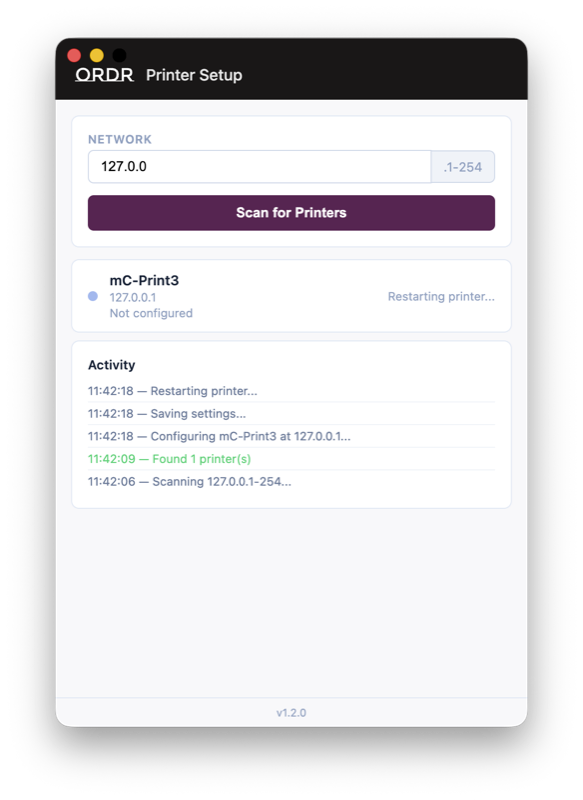
The printer restarts as part of this. A printer on a cable is usually back within half a minute; a printer on Wi-Fi can take closer to a minute because it has to reconnect to your Wi-Fi. The app waits up to a minute and a half.
If the printer does not come back in time, the dot turns red and the card offers Retry. Wait a moment for the printer to finish restarting, then press Retry.
The Activity list at the bottom of the window keeps a record of everything the app has done, with the time of each step.
Add the printer to ORDR
Once a printer is set up, ORDR needs to know about it so it can send orders to it.
- Press Add to ORDR on the printer’s card. ORDR’s Add a printer page opens in your web browser with the printer’s Network address already filled in.
- Sign in if asked.
- Fill in What this printer is called, for example Kitchen printer, and the rest of the form, then press Save this printer.
Every printer card also shows the printer’s Network address with a Copy button beside it. Use Copy if you need to paste the address into ORDR yourself.
Changing a printer later
A printer that is already set up shows Reconfigure instead of Set Up. Press it to apply ORDR’s settings again, for example after the printer has been reset to its factory settings.
If it does not work
- The printer is not found. Make sure the computer and the printer are on the same network, and print the settings page to check the printer’s IP address.
- Set Up fails straight away. ORDR Printer Setup signs in to the printer with Star’s default password. If someone has changed the printer’s password, the app cannot change its settings: follow Set up a printer from its own web page instead.
- The printer shows Configured but nothing prints. Check that the printer has been added in ORDR, then print the settings page and check that CloudPRNT says ENABLE.
If you are still stuck, contact ORDR’s support team and include a photo of the printer’s settings page.