Each menu in ORDR Staff has two web links, and each link has its own QR code:
- URL to preview opens the menu for viewing only. Customers can read it but cannot order. Use it on your website, social media, posters and window displays.
- URL to order opens the same menu with ordering switched on. Customers can view the menu and order from it.
Pick the one that matches what you want customers to do. A QR code made from URL to preview never lets anyone order, wherever it is printed.
Get a menu’s link and QR code
- In the left-hand menu, choose Menu builder.
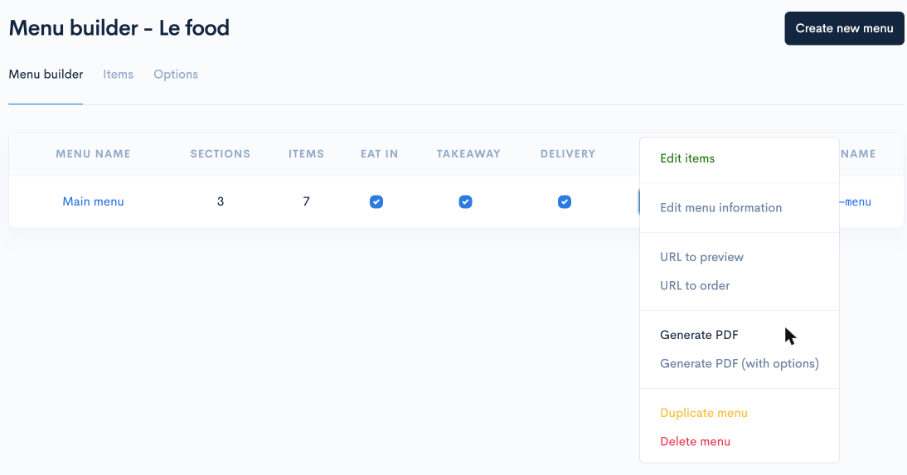
- On the menu’s row, press Options.
- Choose URL to preview or URL to order.
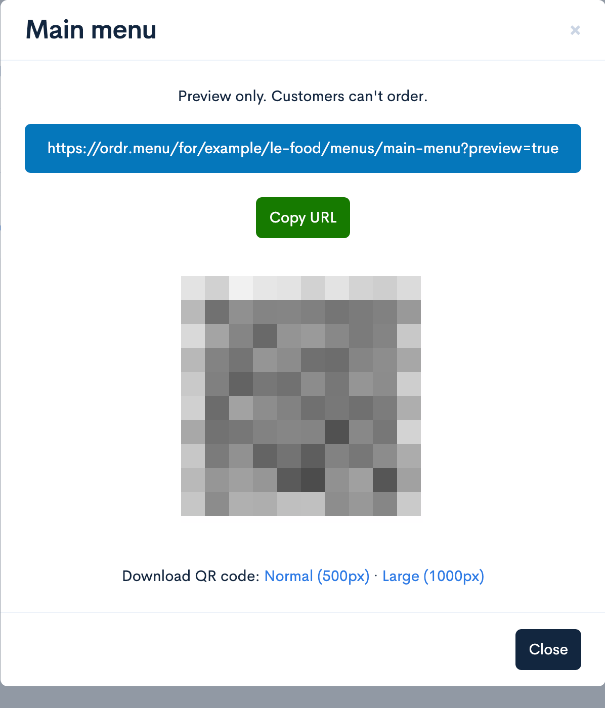
A window opens with the menu’s name at the top. The line under it confirms which kind of link it is: Preview only. Customers can’t order. or Customers can view the menu and order.
Share the link
Press Copy URL, then paste the link wherever you need it, for example on your website or in a social media post.
Download the QR code
Under the QR code, next to Download QR code:, choose a size:
- Normal (500px) for screens, emails and small table cards.
- Large (1000px) for posters and anything printed large.
The QR code downloads as an image you can send to your printer or designer.
Things to know
- The link follows the menu’s web-name. It is shown in the Web-name column of Menu builder and can be changed under Options, then Edit menu information. If someone changes it, links and QR codes made before the change stop working, so print new ones.
- Each menu has its own link. If you run a lunch menu and a dinner menu, each needs its own QR code.
- These are not your table QR codes. The QR codes on your tables are linked to each table, so orders arrive with the table already set. See Assign a QR code to a table.
- Check before you print. Scan the QR code with your phone and make sure it opens the right menu, and that you can (or cannot) order, as you intended.